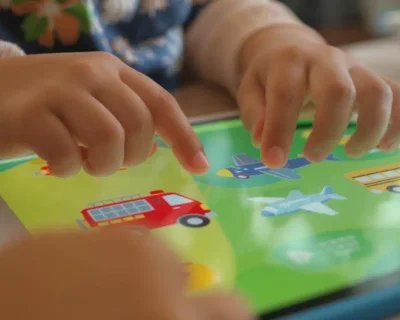
Finally—hand over your device without the panic of finding 47 Amazon orders and a FaceTime call to your boss.
How do I lock my iPhone to one app for my toddler?
Turn on Guided Access in Settings > Accessibility, set a passcode, then triple‑click the side button in the app you want to lock. Tap Start to keep your child in that app.
Prefer to start with healthy screen-time basics? Read our Screen Time Guidelines for Educational Apps.
Guided Access pairs perfectly with our apps—once locked in, toddlers can explore freely without accidentally leaving the app or making purchases.
The Moment Every Parent Dreads
It's Tuesday afternoon. You're juggling a work call, your 3-year-old is having a meltdown about wearing socks, and you desperately need 15 minutes where nobody needs you for anything.
You hand over your iPhone with their favorite app open.
Just stay here. Please. Just this once.
Seven minutes later, you hear your phone ringing. Your toddler has somehow navigated to your contacts and accidentally called 911. The dispatcher is asking if everything's okay while your child chatters about fire trucks in the background.
Sound familiar?
The Hidden iPhone Feature That Saves Your Sanity (And Your Dignity)
Apple's Guided Access feature lets you temporarily restrict your iPhone or iPad to a single app, preventing children from leaving the app or accessing other features. It's basically toddler-proofing for your device—and it's already built into every iPhone and iPad.
Think of it as a digital playpen. Your child gets to play freely within the app, but they can't escape to wreak havoc on your photos, contacts, or that important work email you've been drafting.
Why Regular Apps Aren't Designed for Tiny Fingers
Here's the thing most app developers don't tell you: most apps aren't built with wandering toddler fingers in mind.
Your 3-year-old doesn't understand that swiping up brings up the app switcher. They don't know that certain gestures take them away from their game. To them, every part of that screen is fair game for tapping, swiping, and exploring.
And when they inevitably escape the app? Good luck getting them back to where they were. Most apps don't handle interruptions well, so you're starting over. Again.
This is where Little Wheels apps are different.
As a parent myself, I built Talk & Listen and Create & Play with all these frustrations in mind. I know exactly how tiny fingers work, what causes accidental exits, and where kids get stuck or confused.
🚗 Every design choice prioritizes safety and exploration:
- Large, toddler-friendly tap targets designed for chunky fingers
- Intuitive navigation that encourages discovery without dead ends
- Safe exploration zones where kids can swipe and tap freely
- No small exit buttons lurking in corners waiting to be accidentally pressed
The Step-by-Step Guide to Device Freedom
Step 1: Set Up Guided Access (One Time Only)
Go to Settings > Accessibility > Guided Access, then turn on Guided Access.
- Open Settings on your iPhone or iPad
- Tap Accessibility
- Scroll down to "General" and tap Guided Access
- Toggle Guided Access to ON (it'll turn green)
Step 2: Create Your "Escape Code"
Tap Passcode Settings, then tap Set Guided Access Passcode and enter a passcode.
Pro tip: Use a different code than your regular phone passcode. Trust us on this one.
If you have Face ID or Touch ID, turn that on too—it's much faster than typing a code when you need to end the session quickly.
Step 3: Lock Into Any App
Open the app you want, then triple-click the side button (iPhone X or later) or home button (iPhone 8 and earlier).
- Open your child's app (like Little Wheels Talk & Listen)
- Triple-click your home button or side button
- Tap "Guided Access" from the menu
- Optional: Circle any areas you want to disable (like that tricky exit button)
- Tap "Start" in the top right
That's it. Your device is now locked to that app.
The Peace of Mind Features You'll Actually Use
Time Limits (Because "Five More Minutes" Means Forever)
You can set a time limit and customize which features, hardware buttons, and areas of the screen are available.
Set a timer for exactly how long you need. When time's up, the screen locks automatically. No negotiations. No "just one more level." Just done.
How to set it:
- Tap "Options" when setting up Guided Access
- Turn on "Time Limit"
- Set your timer (we recommend 15-20 minutes for optimal sanity restoration)
Disable Problem Areas
Remember that exit button your toddler always finds? Circle it when setting up Guided Access, and it becomes untappable.
Common areas to disable:
- Back buttons in video apps
- Menu buttons that lead to other content
- Any buttons near the edges (where tiny thumbs naturally rest)
Motion Control (For the iPad Spinners)
Turn off Motion to prevent your iPad from rotating when your toddler inevitably uses it as a steering wheel while watching truck videos.
Why Little Wheels Apps Work Perfectly with Guided Access
We built Talk & Listen and Create & Play specifically for these exact moments—when you need your child engaged, learning, and staying put.
Talk & Listen: Speech Practice That Actually Holds Attention
- Safe exploration with no confusing menus or hidden exits
- Large, toddler-friendly buttons designed for confident interaction
- Tiered learning that adapts naturally to developmental milestones without feeling like "lessons"
- Offline functionality means no surprise YouTube rabbit holes or unwanted internet content
The beauty of guided access with Talk & Listen is that kids can freely explore the app's toyroom-style interface, discovering vehicles and sounds through natural play, while you know they can't accidentally call anyone or delete your photos.
When your 2-year-old is practicing vehicle sounds, they're actually building vocabulary and speech skills through play-based discovery—not just killing time.
Create & Play: Mess-Free Creativity (Literally)
- DJ Van Beats keeps kids engaged with intuitive swipe-and-tap mixing (perfect for guided access!)
- Digital sticker scenes provide the satisfaction of physical stickers without the cleanup
- No in-app purchases to accidentally trigger (because we've all been there)
- Discovery-based navigation lets kids explore the digital toyroom safely and independently
The swiping gestures in Create & Play are actually one of the biggest benefits of using guided access—kids can swipe to mix beats and move stickers around freely without accidentally swiping out of the app entirely.
The Emergency Exit (When Things Go Wrong)
To exit Guided Access, triple-click the side button (or home button on older devices), then enter your Guided Access passcode, or use Face ID/Touch ID if enabled.
To end the session:
- Triple-click the side button (or home button on older iPhones)
- Enter your passcode or use Face ID/Touch ID
- Tap "End" in the top left
Emergency situations: If your child needs help or something goes wrong, you can always force restart your device (hold power + volume down for iPhone X+, or power + home for older iPhones).
What Parents Are Saying
"I can actually cook dinner now. My 3-year-old stays in the app for the full 15 minutes, and I don't find random apps open or photos deleted. It's magic." — Nick W., Charlotte
"Between guided access and Little Wheels, I finally found screen time that doesn't make me feel guilty. She's actually learning while I catch my breath." — Ellie R., Raleigh
"The DJ feature in Create & Play kept my son busy for our entire flight delay. Other parents kept asking what app it was!" — Amy L., Charleston
Beyond the Immediate Fix: Why This Matters
Using Guided Access isn't just about getting 20 minutes of peace (though that's important too). It's about:
Building positive screen time habits early. When children learn to engage deeply with one activity instead of jumping between apps, they develop better focus and attention skills.
Reducing overstimulation. Constant app-switching creates a state of continuous partial attention. Staying in one app allows for deeper, more meaningful engagement.
Preserving your sanity so you can be a better parent. Those 20 minutes of uninterrupted time can be the difference between a meltdown and a successful evening.
The Real Talk: When Screen Time Actually Helps
Let's be honest—sometimes you need your child occupied safely while you handle life. That's not bad parenting; that's realistic parenting.
The key is making those moments count. Instead of random YouTube videos or addictive games designed to keep kids clicking, choose tools that actually support development.
🚗 Little Wheels apps are designed for exactly these moments:
- When you're making dinner and need 15 minutes of peace
- During long car rides or flights
- At restaurants while waiting for food
- During video calls when you need them quietly occupied
And they're built by a parent who gets it. Every feature, every tap target, every swipe gesture was designed with real toddler behavior in mind—not just what looks good in a demo.
Ready to Reclaim Those 15 Minutes?
Set up Guided Access today (it takes 2 minutes), download Little Wheels Talk & Listen or Create & Play, and discover what "peaceful screen time" actually feels like.
Your sanity—and your device—will thank you.
Quick Setup Checklist:
- ☐ Go to Settings > Accessibility > Guided Access
- ☐ Turn on Guided Access and set a passcode
- ☐ Download Little Wheels Talk & Listen ($4.99) or Create & Play ($4.99)
- ☐ Practice the triple-click activation a few times
- ☐ Test with a 10-minute session first
- ☐ Enjoy your first uninterrupted cup of coffee in months
Want to explore more strategies for peaceful parenting moments? Check out our guide to mastering peaceful public outings or discover why vehicle-powered learning works so well for toddlers.
Further Reading
Have questions about setting up Guided Access or want to share your success story? I'd love to hear from you at sean@recordcreativeco.com.
You Might Also Like
6 Screen Time Rules That Actually Work | No Guilt Guide
Realistic screen time rules from parents who've tried everything. No shame, no perfection—just what works when you need 20 minutes of peace. Ages 2-6.

Best Vehicle YouTube Channels for Toddlers
Curated list of safe, calm vehicle YouTube channels for toddlers. Real construction footage, train videos, and truck content without annoying ads or overstimulating edits. Parent-vetted picks.
Screen Time Without Guilt: What Research Says About Quality vs. Quantity for Toddlers
Stop feeling guilty about screen time. Research shows quality matters more than quantity—learn how to choose apps that actually support development.